By Troy Dreier
October 25, 2005
 |
At a product meeting years ago, a Palm representative told us that $300 was an important price point because it's the dividing line between when a shopper will buy a gadget on impulse and when he or she needs to check with a spouse. We're not sure if that was in their mind with the TX, but it's certainly nicely affordable for what it offers.
You'll get Bluetooth (1.1) and Wi-Fi (802.11b), a decently fast 312-MHz Intel processor, and 128MB of storage.

Front View
Buying Choices: For Palm T|X Handheld Products from online stores:
18 Store Offers from $12-$455
Palm is once again renaming its handhelds, and we hope it sticks with this system for a while. It's dropping the Tungsten and Zire titles and going with initials. That makes this the successor to the Tungsten T5 (see palmOne’s Bold Guess), which currently costs $50 more and offers more storage (256 MB to the TX's 128 MB) and a faster processor (416 MHz). But the T5 doesn't have built-in WiFi, which is a huge shortcoming.
Odds are that you'll rarely run processor-intensive apps on your Palm and that you'll never fill it up (and if you did, you could buy a storage expansion card). But checking e-mail is something you'll want to do daily.

Rear View
Looking Good
The Palm TX's exterior doesn't hold many surprises, just the standard Palm good looks. You'll first notice the vibrant 320 x 480 high resolution screen, which always looked crystal clear in our testing. A row of buttons along the bottom of the TX lets you call up the Home screen (press it to switch between icon and list views), calendar, contacts, and the Web browser. A 5-way navigation button in the middle lets you move around or select items.
The TX comes with a flip screen cover, which you attach to a slot on the left-side of the handheld. It's nice to have, although we wish the TX came with a fuller case with a belt clip.
The top of the TX holds the power button, 3.5mm stereo audio jack, Multimedia/SD/SDIO expansion card slot, and stylus. The stylus is elegant and silver, but isn't spring-loaded, like with other higher-priced models. The dock connector is on the bottom.

Palm TX with Stylus
We're surprised that this unit doesn't have a voice recorder. Perhaps that was one of the concessions Palm made to keep the unit so trim (it measures 4.76 x 3.08 x 0.61 inches and weighs only 5.25 ounces). We don't miss it, but if you frequently take voice notes, you'll want a different handheld. Palm saves voice recording for its higher-end models: Zire 72, Tungsten C, and LifeDrive Mobile Manager.
Another concession is that this Palm doesn't come with a cradle. It might be a small point, but we'd rather have the Palm standing at attention by our computer, rather that lying down on the job. The TX simply comes with a USB sync cable.

Palm TX with Charging Cable
Performance Plus
Wi-Fi
Palm handhelds have always been known for ease-of-use, and the TX doesn't disappoint. We love how easy it is to find a wireless connection with the TX's software, for example. From the row of on-screen buttons along the bottom of the screen, select the Wi-Fi button (it looks like three signal strength bars).
When the Wi-Fi control panel comes up, click the Scan/Setup button to see all the wireless networks available to you. The results show the signal strength of each network as well as whether or not they're secured (by WEP or WPA). That makes fast work for a traveler to find a strong, open connection—much easier than with a Windows Mobile device.
Software
Software includes the Blazer Web client, which rendered pages quickly in our testing. We especially like its bookmarking controls, which give you large buttons to click for each bookmark, so that you won't accidentally select the wrong one.

Blazer
The TX also comes with the Versa 3.1 mail client, which is easy to use and includes a short cut wizard that makes it quick to set up accounts for all the popular e-mail systems.
The software bundle also includes PTunes (for listening to your MP3s), a media player for viewing pictures (even slideshows) and movies, the professional edition of DataViz Documents To Go 7 (for viewing and editing Office documents), an SMS application, a world clock, and Palm's usual excellent bundle of calendar, contact, memo, and to-do apps. It runs on the Palm OS 5.4 (called Garnet).

Landscape Mode 
Excel
We admire how well the operating system does at making controls easy to find. The on-screen row of buttons on the bottom of the screen gives access not only to Wi-Fi and Bluetooth, but also lets you change the screen orientation between portrait and landscape, access pulldown menus, and hide the on-screen text input area to get more viewing area.
Power
Battery life isn't as good with the TX as we'd like. If you're a heavy user, you'll need to charge it every night. In standard use, we got between 4 and 4 1/2 hours, but with Wi-Fi on we only got half that. Like other Palm, the TX warranty covers the hardware for one year and the OS and software for 90 days.
Conclusion
With the inclusion of Wi-Fi into a mid-range handheld, Palm has made the TX into a great all-around performer. It's small and light enough to carry in a shirt pocket, yet it has enough processing power and storage space to keep even a dedicated user happy.
People looking for a Palm that doubles as a music player will want the LifeDrive and people who want a phone built-in should look to Palm's highly successful Treo line. The TX doesn't have a built-in camera, as the Zire 72 does, and it lacks the Tungsten C's voice recorder and QWERTY keyboard. But if you can do without those, we think the TX is an excellent choice.
| Merchants: Where to buy Palm T|X Handheld Products | ||||
| Store | PDA Certified | In stock | Shipping | Price |
 | Write a store review | yes | 0.00 | $262.63 |
 | Write a store review | yes | 0.00 | $228.95 |
 | Write a store review | yes | 0.00 | $235.90 |
| Sponsored Listings: Palm TX
Palm TX
Find Local Handymen Here!
|
Related Links:
|
| |
 Printable Version Printable Version |
|
 Email this Story to a Friend Email this Story to a Friend |  Add Your Opinion Add Your Opinion |
| User Opinions:
| |
| Total: 13 Opinions - Displaying: 3 of 13 | Read More... |
| Damn nice thing first - to Gadget Guy aka Jack - thas just crap. There are severel good freeware Filebrowser out there - and btw - the file dident get saved cause no Application is registerd for the *.3gp fiel at beginning. The TX is running with the highest securit...more Submitted by: Sky Abismal !!!DO NOT BUY THE PALM TX!!!I downloaded a 3gp movie from a phone using bluetooth and it just disapeared, there is no way I can find it because there is no file browser on the TX. I also tried to set it up to use my router but it ...more Submitted by: Gadget Guy Aweful !!!DO NOT BUY THE PALM TX!!!I downloaded a 3gp movie from a phone using bluetooth and it just disapeared, there is no way I can find it because there is no file browser on the TX. I also tried to set it up to use my router but it ...more Submitted by: Jack | |
 Add Your Opinion Add Your Opinion |  See All 13 Opinions >> See All 13 Opinions >> |
- Windows is a registered trademark of Microsoft Corp.
- BlackBerry is a registered trademark of Research in Motion Limite
Sony Unveils VAIO AX Digital Studio Notebook — Cormac @ 15:24 
Sony unveiled its new VAIO AX Digital Studio PC, positioned as a mobile multimedia center. The new system features a 17" WXGA+ widescreen display with Sony's original XBRITE LCD technology. Users can also watch and record high-quality television with a removable TV tuner and Microsoft Windows XP Media Center Edition 2005. Also in the box is a DVD+R Double Layer/DVD±RW drive with Sony's Click to DVD software.

The VAIO AX notebook includes a multi-function bay for adding other necessary components. One can swap a TV-tuner Bay Unit, a DVD+R Double Layer/DVD±RW Bay Unit, an optional CD-RW/DVD-ROM Bay Unit, an optional 80GB HDD Bay Unit, and an optional HDD Adapter Bay Unit. The optional docking station with an additional multi-function bay provides even more options. The VAIO AX notebook also sports an integrated 0.3 mega-pixel camera for video chatting and a built-in fingerprint sensor. The notebook also comes standard with a multitude of connector interfaces, including an i.LINK® (IEEE 1394) and two USB 2.0 ports as well as Memory Stick and Secure Digital media slots.
Speaking of software, the model comes with a full suite of Sony multimedia applications, including SonicStage Mastering Studio software for managing music in a variety of formats and DVgate Plus software for capturing and editing both standard definition and high-definition (1080i) video.
Sony VAIO AX notebooks will be available next month starting at about $2,000. They can be purchased at national retailers, online at SonyStyle.com or at SonyStyle stores. Pre-orders begin online today at www.sony.com/ax.

Of course it's a subjective opinion, but Toshiba notebooks have always attracted me by their combination of technical solutions and original design. That's why the first impression produced by Toshiba Qosmio F10 was... disappointment. The design seems too inexpressive. However, the design impressions soon paled into insignificance. But let's not put the cart before the horse.
Technical characteristics of Toshiba Qosmio F10 (claimed by the manufacturer)
| Processor | Intel Pentium M 735, 1.7GHz (our sample was equipped with Pentium M 755 2 GHz) |
| Chipset | Intel 855PM |
| RAM | SDRAM DDR PC2700 up to 2048 MB (the sample under review had 1024MB) |
| Display | 15.4" Toshiba TruBrite WXGA with wide angles of view (HCSV), 1280*800, 16.7M colors |
| Graphics | GeForce FX Go5700 128MB DDR SDRAM |
| Audio | AC'97 SoundMAX codec |
| HDD | 80GB (our sample was equipped with Toshiba MK8026GAX) |
| Optical storage | Built-in DVD Super Multi (Double Layer)
Reading: 24x CD-ROM, 8x DVD-ROM Recording: 24x CD-R, 10x CD-RW, 8x DVD-R, 4x DVD-RW, 8x DVD+R, 2,4x DVD+RW(Double Layer), 4x DVD+RW, 3x DVD-RAM (our sample was equipped with Matshita DVD-RAM UJ-831S) |
| PCMCIA | 1xType II |
| I/O ports |
|
| Card Reader | Bridge Media slot (SD, xD Picture Card, Memory Stick, Memory Stick Pro, Multi Media Card) |
| Communications: | Ethernet 10/100
Fax modem (v.90 v.92) Wi-Fi 802.11 b/g (optional, installed in our sample) Bluetooth (optional, not installed in our sample) |
| Dimensions and weight |
|
| Power supply |
|
According to the Russian Toshiba web site, Qosmio combines audio, video, and PC into a single mobile digital multimedia system. Various video connectors back up these words. The notebook can input and output both analog and digital video. The set of audio jacks is standard. Theoretically, S/PDIF Out is sufficient, but the same input is not available.
Package Contents:
We tested a sample with minimum configuration. The bundle depends on a configuration and is published on Toshiba web site.
First Impressions
As I have already written, the exterior of the notebook disappointed me a little, when I saw it for the first time. It's a standard "brick", silvery-topped and gray-bellied. It looks much worse than Satellite M30, to be frank. I repeat, this is my subjective impression. Perhaps, I fail to keep up with the present. Let's take an all-round view of the notebook.
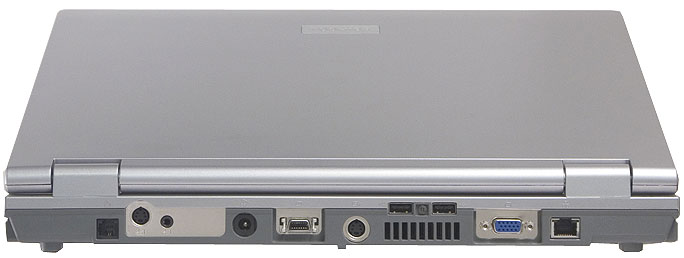
The rear panel (from left to right)
- Phone line connector
- Group of video inputs (S-Video In and Monitor-in) on a metal plate. The same plate may contain an TV antenna jack for a TV tuner, not available in our sample
- Power cable connector
- D-Video Out
- S-Video Out
- 2 x USB (with air grating below)
- VGA port
- LAN port
As you can see, the variety of video jacks must theoretically satisfy any exacting user. Monitor-in is intended for an analog video source connected via the bundled RCA adapter (Audio-Left, Audio-Right, Composite Video).
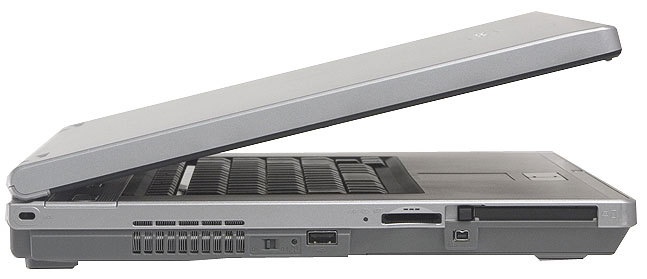
The left flank (in the same order)
- Kensington lock hole
- Air grating
- Wireless switch with an indicator
- USB port
- BridgeMedia slot
- PC Card slot
- IEEE1394 (under it)

Right flank (in the same order)
- Volume control
- 1 x headphone / S/PDIF
- Microphone jack
- Optical drive
- Another USB port, vertical orientation
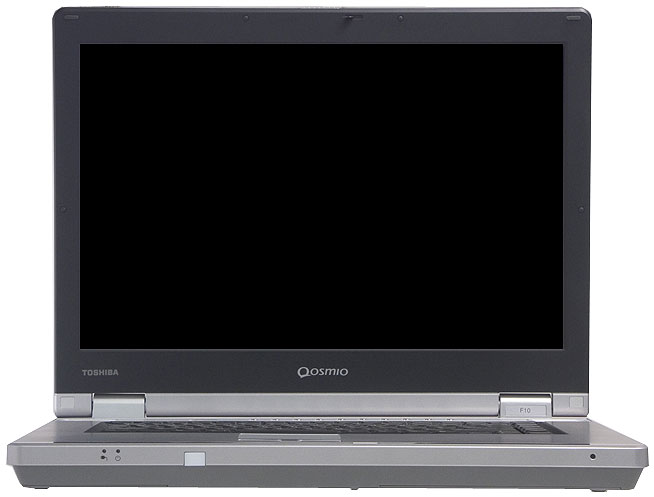
The front panel houses indicators for main power and notebook status, a dummy panel (some models are equipped with IrDA here), a display lid latch, and a mike. The mike is located in an original place, not quite optimal.
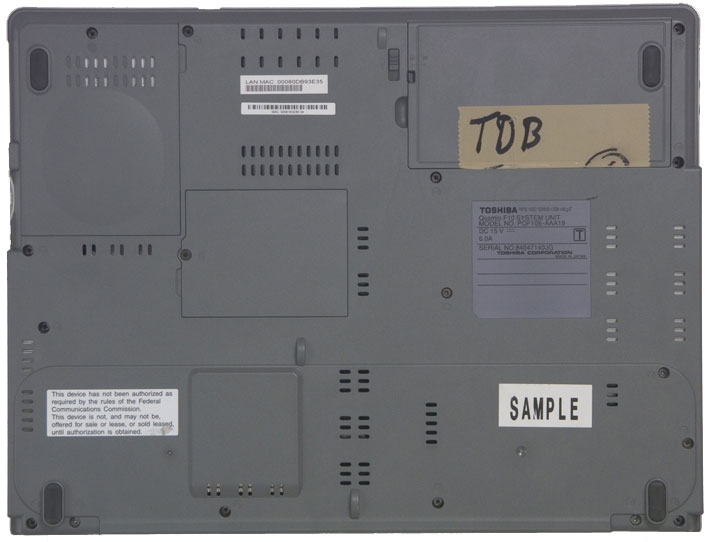
The bottom houses a battery (top right on the photo), HDD (top left) and memory (center) bays.
Ergonomics and usability
Let's open the lid. It should be noted that the notebook looks more attractive when you open it. Now we can talk about the strict design.

The keyboard is rather convenient, but the layout of our sample differed from the traditional: «@» and «#» are obviously out of place. I like that the Ins and Del keys are to the right of Space. But I don't like the short Space. Unfortunately, it takes rather long to get used to this layout. Sticky Fn seems to me rather convenient, it saves you the trouble of holding it down for Fn+F1..F12 combinations. This feature is implemented in Toshiba Utilities. There are also some interesting hot key combinations - for example, Fn+Space changes screen resolution, Fn+4 switches to playback mode from the analog video-in. Detailed description of these combinations are published in the user's manual.

Caps Lock indicator is right on the corresponding button. Scroll Lock and Num Lock are located on the insert that separates a row of functional keys.
Several buttons are scattered over the keyboard. Aside from the power on button, these keys include (from left to right)
- browser launch button
- CD/DVD player launch button
- TV output button
- brightness level control
- Toshiba Zooming Utility
The touchpad is quite convenient, even my favorite scroll button is supplied.
Built-in speakers produced an ambivalent impression. The sound is quite clear, but it noticeably lacks basses even compared to notebooks with subwoofers. That's why the sound in movies with lots of special effects is not expressive enough.
Qosmio Player plays back CD and DVD without booting into an operating system. It requires a 100 MB partition to be installed (readme recommends 200). Playback is controlled with a row of buttons over the keyboard. The player is configured by hot key combinations. You are strongly recommended to read the user's manual to get to know how to control the player.
You can choose one of the three available image quality modes.
- Dynamic: increased brightness.
- Standard: standard indoors usage.
- Theater: intended for dark rooms, provides the theater presence effect.
You can also choose one of the three sharpness levels: Low, Medium, or High.
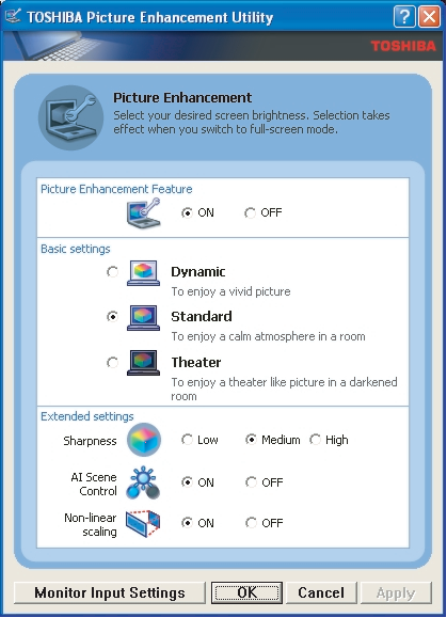
Here is a screenshot of TOSHIBA Picture Enhancement Utility.
Matrix
The matrix is probably the most striking part of this notebook. It leaves a wonderful impression. Subjectively, it's the best notebook panel I have ever seen. Bright saturated colors, wide viewing angles... The only drawback is glares, which you can see on the photo of additional buttons - the keyboard is reflected in the display. So you'd better watch movies, when the lights are subdued. You can look at the complete instrumental test results here, the main results are published in the table.
| Response time, ms | Parameter | Mean | Abmodality | Angles of vision | ||||
| min., % | max., % | CR | Horiz. | Vert. | ||||
| | | | | | | | | |
| | | | | | | | | |
| | | | | | | | ||
The response time is average. High level of black spot luminance can be explained by the maximum brightness setting. It should be noted that the contrast is very good in this mode as well. Wide angles of view save the trouble of adjusting the panel position whenever you move. Rather high nonuniformity of black and white spot brightness is almost invisible by eye - you will notice that the bottom part of the panel is brighter only in very dark scenes.
Warranty and Tech Support
The notebook is backed up by 2 years of international warranty. Authorized service center - CEPCO. HD - Moscow, Soviet Army St, 5, Phones: (095) 684-5577, 684-5880, 684-5881, Web-site: http://www.cepco.ru. The list of service centers in other cities is published on the Russian Toshiba web site. The web site also offers E-Support.
Testing the notebook
The notebook is equipped with a relatively rare video card - GeForce FX Go5700 128MB. Unfortunately, there can be no correct performance comparison to models with ATI graphics. The only model on the 8555 chipset with Dothan processor that passed our tests is ASUS M6Ne, but its ATI Mobility Radeon 9700 is equipped with 64MB. 128MB of video memory are installed in MaxSelect TravelBook X7+, but its CPU clock is just 1.7GHz. It can't be helped, we'll publish the results of these models for comparison (where justified), MaxSelect will be included just for a crowd.
| BAPCo/MadOnion MobileMark 2002 Productivity workload (Performance rating) | 219 |
| BAPCo/MadOnion MobileMark 2002 Productivity workload (Average response time) | 0.9 sec |
| BAPCo/MadOnion MobileMark 2002 Productivity workload (Battery life rating) | 136 minutes |
| BAPCo/MadOnion MobileMark 2002 Reader workload (Battery life rating) | 143 minutes |
Battery run-down time for a 4 kg notebook is evidently not the most important mode. Nevertheless, the model survives more than two hours on its batteries.
Now what concerns the main supply operation.
Toshiba demonstrates minimum advantage, MaxSelect naturally lags behind.
And now — 3D graphics. MadOnion 3DMark 2001 SE (32 bit color, 32 bit Texture Format, NoAA, 24 bit Z-buffer depth, Frame Buffer — Double buffering, Game Performance)
I'll publish a separate diagram with the results in wide screen modes.
Now — 3DMark03. All test settings are by default.
Here is a separate diagram for wide screen modes again.
Unfortunately, the maximum resolution of the panel from Toshiba is lower. But it demonstrates excellent performance in supported modes and outperforms ASUS.
And finally here go the tests in OpenGL games. The sound card is disabled.
Here the Toshiba model is at advantage again. The higher the image quality, the higher the advantage.
An interesting situation - Qosmio performance grows considerably in 32-bit color mode
Overall Bottom Line. Conclusions
So, what do we get? Excellent panel, excellent performance for a notebook on the 1st generation Centrino platform, including 3D graphics. Plus DVD Super-Multi that can record double-layer discs. Design? Firstly, I have already written that the design gradually pales into insignificance. Secondly, tastes differ.
of Toshiba in Moscow for the provided notebook.
Of course it's a subjective opinion, but Toshiba notebooks have always attracted me by their combination of technical solutions and original design. That's why the first impression produced by Toshiba Qosmio F10 was... disappointment. The design seems too inexpressive. However, the design impressions soon paled into insignificance. But let's not put the cart before the horse.
Technical characteristics of Toshiba Qosmio F10 (claimed by the manufacturer)
| Processor | Intel Pentium M 735, 1.7GHz (our sample was equipped with Pentium M 755 2 GHz) |
| Chipset | Intel 855PM |
| RAM | SDRAM DDR PC2700 up to 2048 MB (the sample under review had 1024MB) |
| Display | 15.4" Toshiba TruBrite WXGA with wide angles of view (HCSV), 1280*800, 16.7M colors |
| Graphics | GeForce FX Go5700 128MB DDR SDRAM |
| Audio | AC'97 SoundMAX codec |
| HDD | 80GB (our sample was equipped with Toshiba MK8026GAX) |
| Optical storage | Built-in DVD Super Multi (Double Layer)
Reading: 24x CD-ROM, 8x DVD-ROM Recording: 24x CD-R, 10x CD-RW, 8x DVD-R, 4x DVD-RW, 8x DVD+R, 2,4x DVD+RW(Double Layer), 4x DVD+RW, 3x DVD-RAM (our sample was equipped with Matshita DVD-RAM UJ-831S) |
| PCMCIA | 1xType II |
| I/O ports |
|
| Card Reader | Bridge Media slot (SD, xD Picture Card, Memory Stick, Memory Stick Pro, Multi Media Card) |
| Communications: | Ethernet 10/100
Fax modem (v.90 v.92) Wi-Fi 802.11 b/g (optional, installed in our sample) Bluetooth (optional, not installed in our sample) |
| Dimensions and weight |
|
| Power supply |
|
According to the Russian Toshiba web site, Qosmio combines audio, video, and PC into a single mobile digital multimedia system. Various video connectors back up these words. The notebook can input and output both analog and digital video. The set of audio jacks is standard. Theoretically, S/PDIF Out is sufficient, but the same input is not available.
Package Contents:
We tested a sample with minimum configuration. The bundle depends on a configuration and is published on Toshiba web site.
First Impressions
As I have already written, the exterior of the notebook disappointed me a little, when I saw it for the first time. It's a standard "brick", silvery-topped and gray-bellied. It looks much worse than Satellite M30, to be frank. I repeat, this is my subjective impression. Perhaps, I fail to keep up with the present. Let's take an all-round view of the notebook.
The rear panel (from left to right)
- Phone line connector
- Group of video inputs (S-Video In and Monitor-in) on a metal plate. The same plate may contain an TV antenna jack for a TV tuner, not available in our sample
- Power cable connector
- D-Video Out
- S-Video Out
- 2 x USB (with air grating below)
- VGA port
- LAN port
As you can see, the variety of video jacks must theoretically satisfy any exacting user. Monitor-in is intended for an analog video source connected via the bundled RCA adapter (Audio-Left, Audio-Right, Composite Video).
The left flank (in the same order)
- Kensington lock hole
- Air grating
- Wireless switch with an indicator
- USB port
- BridgeMedia slot
- PC Card slot
- IEEE1394 (under it)
Right flank (in the same order)
- Volume control
- 1 x headphone / S/PDIF
- Microphone jack
- Optical drive
- Another USB port, vertical orientation
The front panel houses indicators for main power and notebook status, a dummy panel (some models are equipped with IrDA here), a display lid latch, and a mike. The mike is located in an original place, not quite optimal.
The bottom houses a battery (top right on the photo), HDD (top left) and memory (center) bays.
Ergonomics and usability
Let's open the lid. It should be noted that the notebook looks more attractive when you open it. Now we can talk about the strict design.
The keyboard is rather convenient, but the layout of our sample differed from the traditional: «@» and «#» are obviously out of place. I like that the Ins and Del keys are to the right of Space. But I don't like the short Space. Unfortunately, it takes rather long to get used to this layout. Sticky Fn seems to me rather convenient, it saves you the trouble of holding it down for Fn+F1..F12 combinations. This feature is implemented in Toshiba Utilities. There are also some interesting hot key combinations - for example, Fn+Space changes screen resolution, Fn+4 switches to playback mode from the analog video-in. Detailed description of these combinations are published in the user's manual.
Caps Lock indicator is right on the corresponding button. Scroll Lock and Num Lock are located on the insert that separates a row of functional keys.
Several buttons are scattered over the keyboard. Aside from the power on button, these keys include (from left to right)
- browser launch button
- CD/DVD player launch button
- TV output button
- brightness level control
- Toshiba Zooming Utility
The touchpad is quite convenient, even my favorite scroll button is supplied.
Built-in speakers produced an ambivalent impression. The sound is quite clear, but it noticeably lacks basses even compared to notebooks with subwoofers. That's why the sound in movies with lots of special effects is not expressive enough.
Qosmio Player plays back CD and DVD without booting into an operating system. It requires a 100 MB partition to be installed (readme recommends 200). Playback is controlled with a row of buttons over the keyboard. The player is configured by hot key combinations. You are strongly recommended to read the user's manual to get to know how to control the player.
You can choose one of the three available image quality modes.
- Dynamic: increased brightness.
- Standard: standard indoors usage.
- Theater: intended for dark rooms, provides the theater presence effect.
You can also choose one of the three sharpness levels: Low, Medium, or High.
Here is a screenshot of TOSHIBA Picture Enhancement Utility.
Matrix
The matrix is probably the most striking part of this notebook. It leaves a wonderful impression. Subjectively, it's the best notebook panel I have ever seen. Bright saturated colors, wide viewing angles... The only drawback is glares, which you can see on the photo of additional buttons - the keyboard is reflected in the display. So you'd better watch movies, when the lights are subdued. You can look at the complete instrumental test results here, the main results are published in the table.
| Response time, ms | Parameter | Mean | Abmodality | Angles of vision | ||||
| min., % | max., % | CR | Horiz. | Vert. | ||||
| | | | | | | | | |
| | | | | | | | | |
| | | | | | | | ||
The response time is average. High level of black spot luminance can be explained by the maximum brightness setting. It should be noted that the contrast is very good in this mode as well. Wide angles of view save the trouble of adjusting the panel position whenever you move. Rather high nonuniformity of black and white spot brightness is almost invisible by eye - you will notice that the bottom part of the panel is brighter only in very dark scenes.
Warranty and Tech Support
The notebook is backed up by 2 years of international warranty. Authorized service center - CEPCO. HD - Moscow, Soviet Army St, 5, Phones: (095) 684-5577, 684-5880, 684-5881, Web-site: http://www.cepco.ru. The list of service centers in other cities is published on the Russian Toshiba web site. The web site also offers E-Support.
Testing the notebook
The notebook is equipped with a relatively rare video card - GeForce FX Go5700 128MB. Unfortunately, there can be no correct performance comparison to models with ATI graphics. The only model on the 8555 chipset with Dothan processor that passed our tests is ASUS M6Ne, but its ATI Mobility Radeon 9700 is equipped with 64MB. 128MB of video memory are installed in MaxSelect TravelBook X7+, but its CPU clock is just 1.7GHz. It can't be helped, we'll publish the results of these models for comparison (where justified), MaxSelect will be included just for a crowd.
| BAPCo/MadOnion MobileMark 2002 Productivity workload (Performance rating) | 219 |
| BAPCo/MadOnion MobileMark 2002 Productivity workload (Average response time) | 0.9 sec |
| BAPCo/MadOnion MobileMark 2002 Productivity workload (Battery life rating) | 136 minutes |
| BAPCo/MadOnion MobileMark 2002 Reader workload (Battery life rating) | 143 minutes |
Battery run-down time for a 4 kg notebook is evidently not the most important mode. Nevertheless, the model survives more than two hours on its batteries.
Now what concerns the main supply operation.
Toshiba demonstrates minimum advantage, MaxSelect naturally lags behind.
And now — 3D graphics. MadOnion 3DMark 2001 SE (32 bit color, 32 bit Texture Format, NoAA, 24 bit Z-buffer depth, Frame Buffer — Double buffering, Game Performance)
I'll publish a separate diagram with the results in wide screen modes.
Now — 3DMark03. All test settings are by default.
Here is a separate diagram for wide screen modes again.
Unfortunately, the maximum resolution of the panel from Toshiba is lower. But it demonstrates excellent performance in supported modes and outperforms ASUS.
And finally here go the tests in OpenGL games. The sound card is disabled.
Here the Toshiba model is at advantage again. The higher the image quality, the higher the advantage.
An interesting situation - Qosmio performance grows considerably in 32-bit color mode
Overall Bottom Line. Conclusions
So, what do we get? Excellent panel, excellent performance for a notebook on the 1st generation Centrino platform, including 3D graphics. Plus DVD Super-Multi that can record double-layer discs. Design? Firstly, I have already written that the design gradually pales into insignificance. Secondly, tastes differ.
of Toshiba in Moscow for the provided notebook.
Lenovo does the same thing: When it supplemented its ThinkPad business laptop line with a series of consumer notebooks dubbed IdeaPad, the company gave the ultralight IdeaPad U110 not a matte black but a vivid red case lid, garnished with an ornate textured paisley pattern that's even echoed on the underside with artfully cut cooling vents.
But there's more to the U110 than flash and splash. Once you admit that it's a splurge at $1,799 (a current discount from $1,899), the 11.1-inch-screened compact is an appealing civilian alternative to the super-elite $3,000 ThinkPad X300 slimline we raved about in May.
Extreme Portability
While the X300 is remarkably light for a notebook that includes an onboard optical drive, the U110 is lighter still, because (spoiler ahead) it doesn't. Instead, the IdeaPad comes with a 13-ounce external DVD±RW drive that plugs into the two USB 2.0 ports on the system's left side. (One port isn't enough to power the AC-adapter-less drive.)
Setting aside the DVD burner and the system's AC adapter (11 ounces), the Lenovo measures 7.7 by 10.8 by 0.9 inches and tips the scales at 2.4 pounds with the provided four-cell battery pack, which fits flush with the notebook for a sleek and trim appearance. As is common with ultralights, there's a larger, longer-lived alternative battery -- a seven-cell pack that protrudes slightly at the rear and below and hikes system weight to 2.9 pounds.
If you winced when you read the U110's price, you should take into account that both batteries, like the USB optical drive and a soft carrying pouch, come with the system instead of hiding as options or asterisks on a lower advertised price. Also, though the IdeaPad has a smidgen less sex appeal, it costs the same as an Apple MacBook Air with no optical drive or swappable battery.
On the minus side, while Lenovo estimates that the little and big batteries can last as long as two and six hours, respectively, our U110 fell far short of such endurance. The four-cell lasted barely an hour and a quarter in our real-world work sessions. The seven-cell averaged about three hours in mixed-use stints without the DVD±RW attached and two hours when using the drive to watch a DVD.
Besides the two USB ports, the notebook's left side offers a VGA monitor connector and an exhaust-fan vent that can get pretty warm. A third USB port, FireWire and Ethernet connectors, microphone and headphone jacks, a six-format memory-card reader slot, and an ExpressCard slot are at the right. Bluetooth is standard, along with 802.11a/g WiFi.

The small laptop makes room for a full-sized keyboard (8 inches from A through apostrophe), except for half-sized function, Delete, and cursor-control keys. The only layout quirk that takes a little adjusting to is that, while there are dedicated PgUp and PgDn keys instead of the common and clumsy Fn-key-plus-cursor-arrow combinations, there aren't dedicated Home and End keys -- those are the Fn key plus PgUp and PgDn. (Pressing the Fn key along with the cursor arrows dials the LCD backlight and audio volume up or down.)
We had to adjust to something else during our first hour or two with the U110 -- the keys, like the palm rest below them, are a glossy black that becomes smothered with smudgy fingerprints after about five minutes. They actually felt a bit slippery at first, like walking on freshly waxed floor tiles, but our fingers quickly adjusted. Call the result a medium-good but not exceptional typing feel.
The IdeaPad breaks from Lenovo's ThinkPads in not having a center-of-keyboard nub or pointing stick for mouse control, just a smallish touchpad with good-sized mouse buttons below it. It worked smoothly and nearly silently in our tests.
|
| » |


|
|
|

Lenovo ThinkPad X200 Review
 If you've been schlepping around a too-heavy, too-slow notebook for too long, Intel and Lenovo have given you even more reasons to buy a better laptop. The new ThinkPad X200 is Lenovo's latest ultraportable notebook, a three-pound hatchling that's ready to fly thanks to Intel's new Centrino 2 mobile-PC platform.
 The X200 replaces the ThinkPad X61, slotting below the rave-reviewed but hyper-pricey ThinkPad X300 in Lenovo's lineup. Instead of the latter's 13.3-inch display, the X200 is built around a 12.1-inch screen that gives the system a footprint about the size of a sheet of paper.
Its slim profile tapers from less than an inch to 1.4 inches thick, and its light weight makes it easy to tote to meetings or slip in your bag. The exterior is the familiar ThinkPad matte black; it won't turn heads, but does give an appropriately professional impression.
Beauty on the Inside
While the X200's exterior is buttoned-down, its sex appeal lurks on the inside. Intel's Centrino 2 platform marries the latest generation of speedy Core 2 Duo processors to a faster front-side bus (1066MHz, up from 800MHz in previous Centrino solutions), which helps eliminate performance bottlenecks at the system level.
Centrino 2 also delivers an improved WiFi wireless chip including 802.11-DraftN support, as well as embedded Gigabit Ethernet networking and improved integrated graphics via a faster Graphics Media Accelerator X4500HD chip with hardware-based high-definition video decoding. Intel boasts that Centrino 2 both improves notebook performance and extends battery life.
Indeed, in our informal testing, the Core 2 Duo P8400-powered (a 2.26GHz processor with 3MB of Level 2 cache) Lenovo generally outperformed other ultraportables in the three-pound weight range, launching and running applications at speeds traditionally reserved for larger laptops. A 2.4GHz Core 2 Duo P8600 CPU is an option.
If you spend a lot of time away from an electrical outlet, you'll also appreciate the X200's battery life, which Lenovo estimates at 3.2 hours with the standard four-cell battery and more than nine hours with a 9-cell battery that hikes system weight to 3.6 pounds.

Business-Friendly Features
The ThinkPad has other features a business pro would crave. Unlike other ultraportables, which make you suffer with an undersized keyboard, the X200's keyboard is full-sized, with the famous feel and responsiveness long a hallmark of ThinkPad portables. Lenovo also provides dedicated volume and mute buttons (no more fumbling with a Fn-key combo) as well as the handy ThinkLight, a white LED above the screen that gives off just enough light to illuminate the keyboard in a dark room.
The 12.1-inch, 1,200 by 800-resolution screen is bright and exceedingly sharp. Compared to its X61 predecessor's 1,024 by 768-pixel panel, the widescreen aspect ratio keeps the height of the panel fairly squat, which makes the X200 ideal for use on an airline tray table. You can equip the X200 with an 80GB, 160GB, or 320GB hard drive; a 200GB, 7,200-rpm drive with Full Disk Encryption; or a 64GB solid-state drive (SSD) that uses indestructible flash memory instead of spinning platters. If you've ever had a traditional hard drive die on you, the allure of an SSD is obvious.
With the exception of FireWire, the X200 has all the ports you're likely to need, including three USB 2.0 ports; a VGA connector for hooking up a projector or monitor; modem and Ethernet jacks; and a PC Card slot. Options include a fingerprint reader for added login security, a Webcam for videoconferencing, and a five-format memory-card reader.
Lenovo also offers optional wireless broadband, which lets you connect via cellular carriers' high-speed networks; the WWAN option has a handy option of its own in GPS navigation. If you often find yourself paying for wireless access at airports, hotels, and other WiFi hot spots -- or find yourself someplace without WiFi altogether -- this feature can pay for itself quickly. Intel UltraWideBand and WiMAX are scheduled to appear later in 2008.
The Tradeoffs
While the X200 has a lot going for it, it does necessitate a few tradeoffs typical of the ultraportable class. First and foremost, unlike the pricier X300, the notebook doesn't have a built-in optical drive. You'll have to invest in a USB-based external drive or opt for Lenovo's snap-on UltraBase accessory, which adds a modular bay for a CD-RW/DVD-ROM, DVD±RW, or Blu-ray drive or a second battery second hard disk.
The small size of the X200 also means there was only room for the familiar ThinkPad TrackPoint pointing stick, not the touchpad most portable users have grown accustomed to. And while the notebook's built-in speaker is fine for personal use, you'll want to rely on your projector's speakers if you're given a presentation in any but the smallest conference room.
But these compromises can be said of most every three-pound PC, and the X200 does away with two of the biggest shortcomings of previous examples: so-so performance and a cramped, substandard keyboard. Even better, the base configuration starts at a reasonable $1,199. Considering its cutting-edge features and horsepower, that price makes the ThinkPad X200 a bargain to boot.
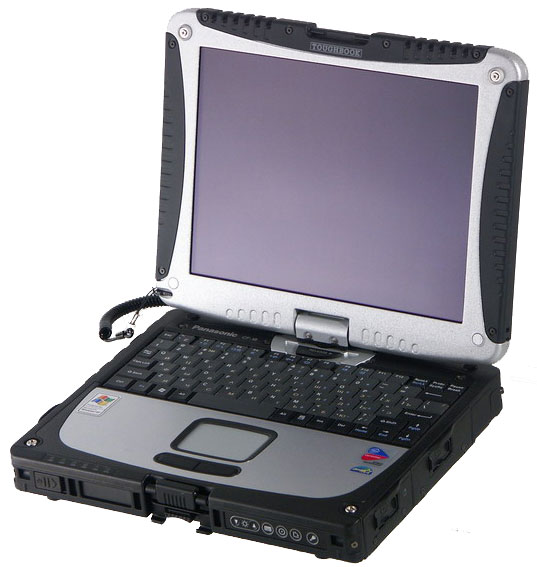
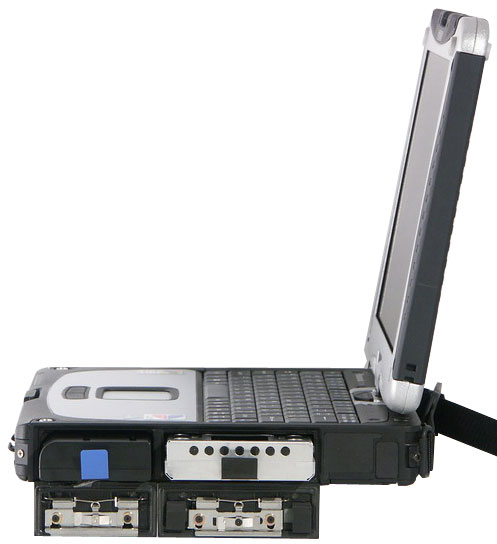
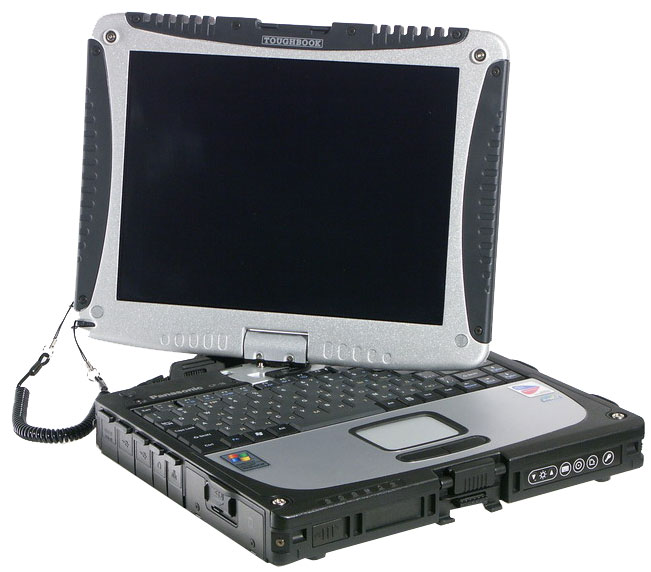
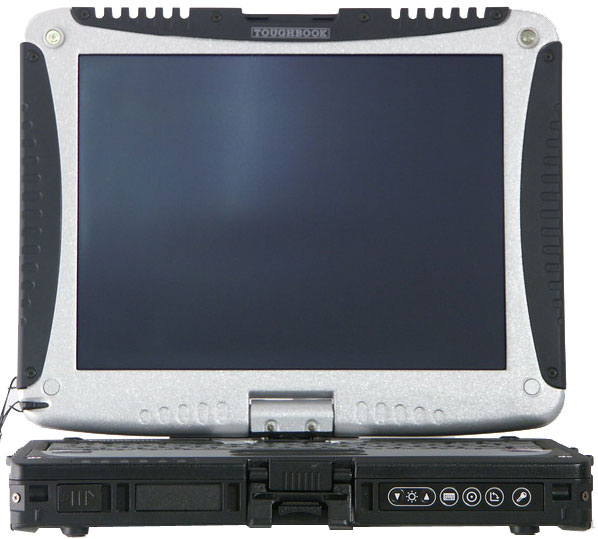
You cannot imagine a demesne, where you can do without computers these days. But what can you do, if the environment conditions are far from tender? What if you need a computer on a race route or geological expedition rather than on an office desktop? Toughbook CF-18 is designed for extreme environment conditions. Besides, it's not just a notebook, it can transform into a Tablet PC. Let's have a look at the specifications. It should be noted that this model currently comes equipped with Pentium M ULV 713 1.1 GHz with Intel PRO/Wireless 2200BG. The model comes in two modifications - Touchscreen PC version and with a regular Tablet PC display with an electromagnetic stylus. In my subjective opinion, Touchscreen is better for extreme environmental conditions - at least you can manipulate it with your finger. We've tested this very modification. Exterior of the model is impressive. Full magnesium alloy case painted black, silvery lid with plastic rubber-like profiles. All connectors are covered with plastic caps. It has a wide fabric strap to carry the tablet PC. So, it does not go with a business suit. The metallic latch resembles packages with military equipment, but it is rugged.
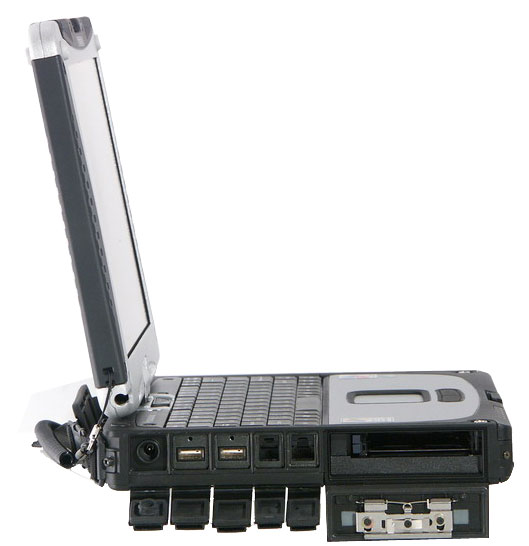
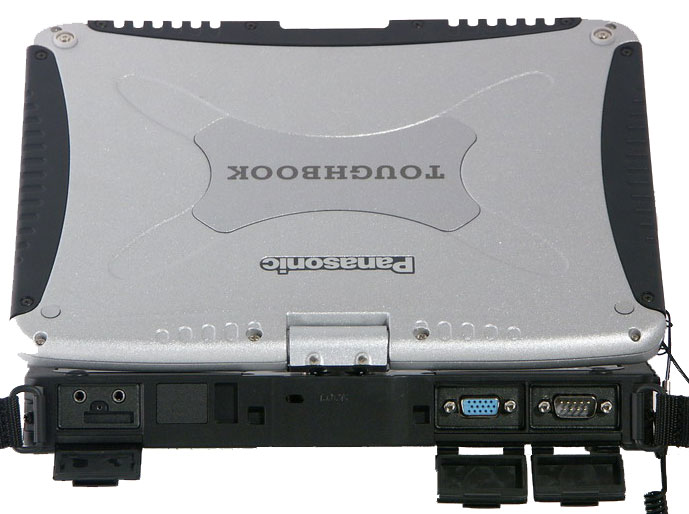
There are three covers at the rear. A group of audio jacks is located under the left one. A video out and a serial port are on the photo on the right. Kensington lock hole is in the middle.
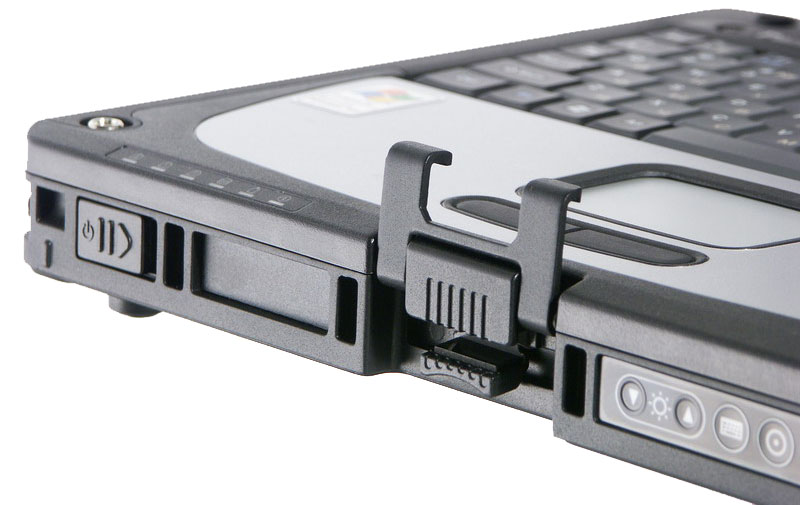
The front panel houses: power slider (on the left), display lid latch, and control buttons: brightness control and tablet mode buttons. These buttons will be described in detail below. The power-on slider is a proprietary solution from Panasonic, it is also used in CF-Y2. This solution is justified for a rugged notebook, but it will take time to get used to it.
Left flank under the covers (from left to right) From the usability point of view, we have some gripes with the USB layout (like in the CF-Y2) — this model offers two ports behind RJ-45 and RJ-11. If a network or modem cable is plugged to the notebook, it's very inconvenient to connect USB devices. On the other hand, which is again typical of Panasonic, the layout of ports and the construction of covers allows to connect even large USB devices without adapters.
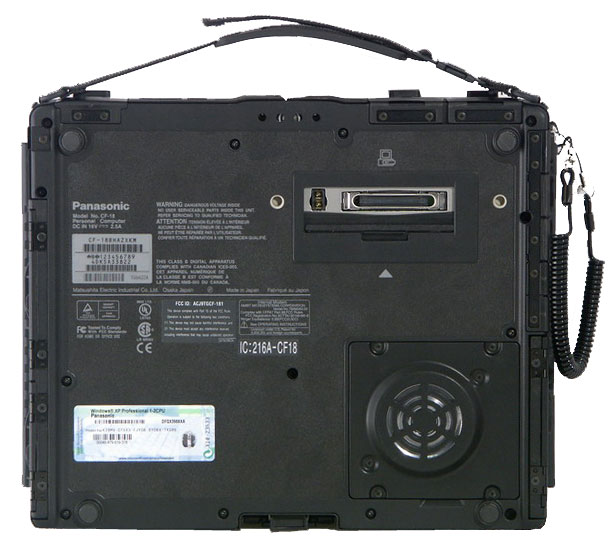
The battery and HDD bays are on the right. The HDD bay is filled with special gel that cushions shocks and vibrations. This notebook is designed in compliance with MIL STD 810F requirements (you can read about this standard here), it must endure 90 cm falls. It allows to quickly replace a HDD in case you drop it from a higher place :).
It's not a vent grid, but a speaker on the bottom. The memory bay is below it. A docking connector is covered by a sliding lid. On the whole, this set of ports is sufficient for working under extreme conditions. They could have added IEEE 1394 though. We haven't tested it for protection. But judging from its construction, this notebook is protected from dust, dirt, and splashes of water, but it's NOT HERMETICALLY SEALED. So you shouldn't drop it into water, leave it in snow. Besides, you should be careful when working under heavy rain. So, let's open the device. The latch mechanism is intuitive, so you'll have no problems with it.
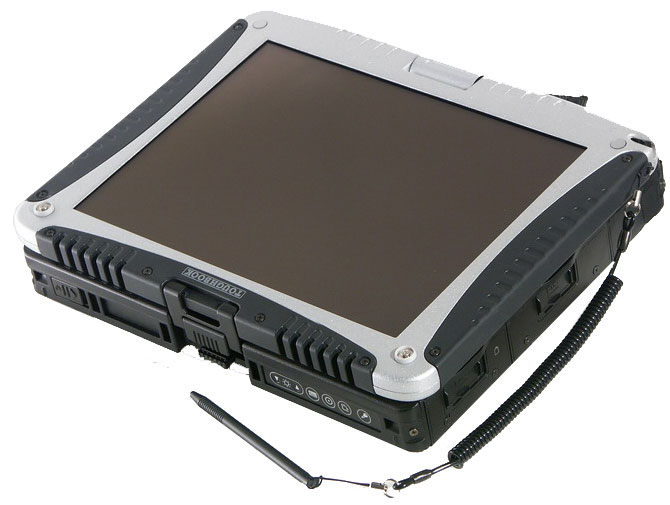
At first, let's work with the CF-18 as with a regular notebook. Of course, the keyboard is narrow, which mostly affects the cursor keys. These buttons are in the inverted L form, instead of usual T-formation. It's unusual and not very convenient, to be frank. A very little Enter is also inconvenient. But on the other hand, Ins and Del are located rather conveniently as well as the only Ctrl. On the whole, you can work with that, but it might have been better. We have no gripes with the touchpad. There are no scroll buttons, the edge of the touchpad is used for this purpose. The group of indicators is located on the front of the notebook under the left palm, which may block it when you work. It contains (from left to right) indicators for Locks, HDD activity, battery charge, and notebook status. Now let's transform the device to a tablet. In order to rotate the lid, you just have to slide the latch in the center under the display. Now the buttons on the front will come in handy. They can be used to show a virtual keyboard, rotate a display (angles and the default position can be configured),
emulate Enter presses, and Log-off (there is an option, when you will have to enter a password to proceed). All in all, it's a standard set of functions for a Tablet PC.
The touch screen, manufactured by Fujitsu Takamisawa, is rather convenient to work with - one of the reasons is a well thought-out system of settings and calibration.
I managed to configure it for the bundled stylus as well as for my finger. Unfortunately, these settings are different.
Of course, the software bundle includes a utility for creating hand-written notes. What concerns display characteristics, unfortunately we didn't carry out our instrumental analysis - our hardware complex was only in development at the time of our tests. Viewing angles are subjectively not very good, which is only natural. But the contrast is rather good at the normal to the display surface. Drawing a bottom line, the notebook is not devoid of drawbacks. While the moderate set of ports is not a drawback and an industrial RS-232 port is an advantage, an inconvenient keyboard hardly has to do with the rugged construction. But if you want to work under environment conditions too rough for regular notebooks, you may lump the drawbacks. Performance of this model is sacrificed to its rugged construction - it's problematic to provide good heat removal in a dust- and water-proof case. That's why there is no point in publishing the results, especially as the only topical test (MobileMark 2002) refused to start up on Toughbook CF-18. Panasonic Toughbook CF-18 possesses an aggressive design and high protection from unfavorable environment conditions. Another advantage of this model is its transformation into a tablet. Its disadvantages include a poor keyboard, and probably its price.
Panasonic Toughbook CF-18 Specifications (from the manufacturer)
Processor Intel® Pentium M ULV 900 MHz Chipset Intel 855GM RAM 256 MB DDR-266 SDRAM expandable to 1280 MB Display Graphics Integrated Audio SigmaTel STAC9767 AC`97, a built-in speaker PC Cards slot Card Type II õ 2 or Type III x 1 (CardBus) HDD 40 GB (our sample was equipped with Toshiba MK4021GAS) Optical storage External DVD/CD-RW Combo CF-VDRRT2W (to be bought separately) I/O ports Communications: Ethernet 10/100
Fax modem 56K
Wi-Fi Options (not available in our sample) Dimensions and weight Power supply First Impressions
Ergonomics and usability
Testing the notebook
Overall Bottom Line. Conclusions
September 16, 2005


 |
|
Pentium M: Good "Desktop" CPU...
| | 
| ||


Talks about the Intel Pentium M processors with attractive power consumption and relatively low heat dissipation offering good performance have been running for a long time already. They often end with one wish: "If we could just install this CPU into a regular desktop computer!" However, this wish is without foundation, it's based solely on emotions: "I've got a notebook with Pentium M — it's very fast!" Yep, it's fast. It's fast for a notebook. But can we compare performance of a notebook and a desktop directly? In the first case we compare the performance with our previous impressions produced by other notebooks, not by a desktop... So, the problem of correct comparison between Pentium M and desktop CPUs is rather sharp, it certainly must have been solved. Either to make sure that a hypothetic PC with Pentium M inside is really very attractive, or to shatter this myth.
Fortunately, some manufacturers released products that allow a correct performance comparison between Pentium M and regular CPUs. For example, AOpen and DFI launched desktop motherboards based on the Intel 855M mobile chipset (one of them, the DFI mobo, takes part in our tests) and ASUS surprised the world with... an adapter to install a mobile processor into desktop motherboards for Socket 478! But there is a fly in the latter ointment: as a processor must be supported by BIOS just to start up correctly, only ASUS motherboards can work with this adapter, their BIOS supporting Pentium M. Here is a list of such motherboards:
- ASUS P4P800-VM
- ASUS P4GPL-X
- ASUS P4GD1
- ASUS P4P800-E
- ASUS P4C800-E DELUXE
- ASUS P4P800 SE
This adapter won't work with products from other manufacturers (even with ASUS motherboards that are not included in this list). Even if a miracle happens, no one knows how a CPU will be detected and whether it will work correctly (most likely answers to these questions are: incorrectly, badly). However, our attempts to start up a system with an adapter and a couple of Socket 478 motherboards from other manufacturers ended in a failure: the system booted (fans on a video card and a CPU cooler rotated, even the CPU got warm), but the screen remained pitch black.
But let's return to our mobile desktop processors. Our main task in this test was simple: on the one hand, to compare the efficiency of various cores at the same clock (that is roughly speaking, to see how many performance units "in terms of MHz" provide processors of various architectures); on the other hand, to estimate (according to test results) the prospects of a hypothetical "mobile core from Intel on a desktop". In other words, to try and forecast the development of affairs, if Intel suddenly decides to give up NetBurst and create a desktop processor based on the same core as in Pentium M. It's high time to proceed to our tests...
Testbed configurations
- Processors
- AMD Athlon XP 3000+ (2.167 GHz core, 512 KB L2, 400 MHz FSB)
- AMD Athlon 64 3700+ (2.2 GHz core, 1 MB L2)
- Intel Pentium M 760 (2.00 GHz core, 2 MB L2, 533 MHz FSB)
- Intel Pentium M 770 (2.13 GHz core, 2 MB L2, 533 MHz FSB)
- Intel Pentium 4 2.8E GHz (Socket 478, 1 MB L2, 800 MHz FSB)
- Intel Pentium 4 540J (1 MB L2, 800 MHz FSB, 3.2 GHz)
- Motherboards
- Albatron KX18D Pro II (Socket A, nForce2 Ultra)
- Gigabyte GA-8IPE1000 Pro2 (Socket 478, i865PE)
- Intel D955XBK Desktop Board (Socket 775, i955X)
- MSI K8T Neo2 (Socket 939, VIA K8T800)
- EPoX EP-9NPA+ Ultra (Socket 939, nForce4 Ultra)
- DFI 855GME-MGF (Socket 479, i855M)
- ASUS P4GPL-X (Socket 478, i915)
- Memory
- 2x512 MB PC3200 (DDR400) DDR SDRAM DIMM 2-2-2-5 (Corsair TwinX)
- 2x512 MB PC5400 (DDR2-533) DDR2 SDRAM DIMM 3-3-3-8 (Corsair)
- Video card: ATI Radeon 9800 Pro 256 MB (Manli)
- Video card: ATI Radeon X800 (256 MB)
- HDD: Samsung SP1614C (SATA), 7200 rpm, 8 MB Cache
- Windows XP Professional SP2, DirectX 9.0c
- ATI CATALYST 5.4 (Display Driver 6.14.10.6525)
As you can see, the "zoo" is rather large. However, it's rather easy to come to know it, as only two large groups take part in the tests. They can be referred to as "AGP group" and "PCI Express group". The first group, AGP:
- Athlon XP 3000+ and a motherboard on nForce2 Ultra, DDR400
- Pentium 4 2.8E GHz and a motherboard on i865PE, DDR400
- Athlon 64 3700+ and a motherboard on VIA K8T800, DDR400
- Pentium M (760/770) and a desktop motherboard on i855M, DDR400 in DDR333 mode
Thus, AGP was conditioned by the motherboard for our contenders (Pentium M) that supports this very graphics bus. The same applies to the second group that uses a PCI Express video card — firstly, because our ASUS motherboard, which supports the Socket 479 —> Socket 478 adapter, is equipped with this very graphics bus; secondly, why not install a more powerful video card on the testbed? PCI Express group:
- Pentium 4 540J and a motherboard on i955X, DDR2-533
- Athlon 64 3700+ and a motherboard on nForce4 Ultra, DDR400
- Pentium M (760/770) and a motherboard on i915, DDR400, Socket 478 with the adapter to 479.
We shall publish the reviews of some of these motherboards (especially of the interesting product from DFI) a tad later (watch the announcements in the Platform section). As for now, have a look at "the coming of Pentium M to desktop" in our test lab.

Socket with an installed cooler, DFI 855GME-MGF.

Socket 479. You will hardly mistake it for Socket 478:
the socket is latched with a screwdriver
instead of a usual lever.

Socket 479 —> 478 adapter, ASUS CT-479 CPU Upgrade Kit, front view.
These two jumpers set the FSB clock — 400 MHz or 533 MHz.
The adapter does not have any other controls.

Socket 479 —> 478 adapter, ASUS CT-479 CPU Upgrade Kit, rear view.

The adapter with a processor installed into Socket 478 on a motherboard.

The same components with an installed cooler
(it's a special cooler that comes shipped with the bundle of this adapter)
The choice of processors is based on quite an evident principle (as far as possible): their clock should be maximum close to the clock of the top Pentium M. The only exception is Pentium 4: it would be evidently outperformed by all equally-clocked competitors, because higher core clocks are the main advantage of this CPU as well as NetBurst architecture as such.
That's why we chose Pentium 4 so that its performance is approximately on the level with Pentium M 770. Of course, at an average that is in all the tests. Fortunately, it's no problem to calculate an average score using Excel GEOMEAN. I emphasize that the average score for Pentium 4 2.8E (in the AGP group) and Pentium 4 540J (in the PCI-E group) is indeed very close to the results of Pentium M 770 (for each group). What concerns "the relative efficiency in terms of MHz", this parameter is of no interest in case of Pentium 4 for the above reasons.
Test results
Remember that diagrams with all test results (61 items!) are published on a separate page — without comments, just as is. The article provides only summary diagrams that calculate the results of entire test groups into average scores. This approach appeases curiosity of the most inquisitive readers, who are against cutting down the number of test results published in our articles, and still makes the article less motley and graphics-intense. What concerns our comments, real professionals (who are interested in details) are expected to need none of them.
SPECapc for 3ds max 6 (3ds max 7.0)
The "old" platform represented by Athlon XP and Pentium 4 / Socket 478 looks the least convincing. Pentium M is quite good — it manages to outperform Pentium 4 540 3.2 GHz on the most progressive dual channel chipset with DDR2 (i955) even on a mobile platform. Pentium M demonstrates even higher results (by 8% better at an average) on a desktop platform (i915). However, the first place is still taken by Athlon 64, it outscores the best result of Pentium M by 6%, while its core clock is just 3% higher (2.2 GHz versus 2.13). Thus, Athlon 64 turns out generally more efficient than Pentium M. By the way, don't forget the fact that L2 Cache in Pentium M is twice as large.
SPECapc for Maya 6 (Maya 6.5)
Pentium M 770 on a desktop platform demonstrated the best result in this test. The weakest processor is the old Athlon XP 3000+, though its clock is even a tad higher than in the top mobile processor from Intel (2167 MHz). However, its cache is four times as smaller (!), perhaps that's the main reason. A dual channel chipset together with DDR400 (i915) is obviously more preferable to Pentium M than the native mobile i855M — performance gain of the mobile processor on a desktop platform reaches 12%. Which is only natural: even with "just" 533 MHz FSB, the single-channel DDR333 (that's the mode offered by the i855M) cannot supply all CPU wants in terms of memory access times.
Lightwave 8.2, rendering
Quite a motley picture, but the majority of processors demonstrate similar results, there is only one outsider — Athlon XP 3000+. Note that the Pentium M results on the mobile and desktop platforms are approximately the same. It means that the speed of memory operations is practically irrelevant for Lightwave.
SPECapc for SolidWorks 2003
Pentium M on the mobile platform goes approximately on a par with Pentium 4 2.8E and Athlon XP 3000+, on the desktop platform — approximately on a par with Pentium 4 540J (3.2 GHz). The fastest processor is Athlon 64 3700+ in both hypostases, as in case of 3ds max 7.
Adobe Photoshop CS (8)
The best result is demonstrated by Pentium 4 540 on the new platform with DDR2, the worst result belongs to the old Athlon XP 3000+. The results of other processors are approximately in the same range. The relatively small gap between the i915 and the i855 can most likely be explained by the fact that 2MB Cache in Pentium M is quite sufficient for Photoshop to make up for the slow memory operations. But that's only within the functions we examine here...
Adobe Acrobat 6.0
Quite an even line, but we still have leaders — Pentium M and Athlon 64.
All-purpose data compression (archiving)
It's for the second time already that the transition from a mobile platform to a desktop one adds 400 MHz to Pentium M "in Pentium 4 equivalent": while its performance on the i855 is similar to Pentium 4 2.8 GHz, on the i915 it gets on a par with Pentium 4 540 at 3.2 GHz. However, Athlon 64 is still faster, the gain is larger than could be expected from its clock advantage over Pentium M.
Multimedia lossy compression (MP3/MPEG2-4)
We can see again that sometimes a large cache voids the RAM performance advantages of some platforms: Pentium M results on the i855 and i915 are practically identical. But it doesn't mean that they are bad. On the contrary, the only processor that outperforms Pentium M 770 is Pentium 4 540.
CPU RightMark 2004B
Quite symptomatic: the results of Pentium M 770 and Athlon 64 3700+ match both times. Advantages of both Pentium 4 processors in this test are undeniable. And we know for sure about the reasons: only these processors support Hyper-Threading that allows to emulate two CPUs with only one physical core.
3D games and graphics visualization
in professional packages
DOOM 3
AGP group demonstrates evident insufficiency of video card's performance, while PCI Express (ATI Radeon X800) shows CPU dependence. Well, we are quite used to Pentium 4 bringing up the rear in games, but Pentium M is good news — it nearly catches up with Athlon 64. Considering that the latter has a higher clock, we can assume that Pentium M would have caught up with it under equal conditions.
Far Cry
The situation is absolutely the same...
Painkiller
Painkiller dislikes all Intel processors, no exceptions. Though it doesn't favour the processor on the AMD K7 core (Athlon XP 3000+) either. So it would be more appropriate to speak of sympathies to the certain K8 core rather than of love to AMD processors.
Unreal Tournament 2004
In this case Pentium M cannot catch up with Athlon 64. But at least it looks much more convincing than both Pentium 4 processors and Athlon XP.
Total score in games
We can draw the following conclusion about games on the whole: the best efficiency "per a single MHz" is demonstrated by the AMD K8 core represented by Athlon 64, but the Pentium M core is still more attractive for gaming than the Prescott / Pentium 4 core.
SPEC viewperf
But SPEC viewperf sticks to its own opinion, having given the lowest rates to Pentium M in both groups. It's also the only test, where Athlon XP 3000+ outperforms Pentium M. How very strange... As a rule, SPEC viewperf agrees to the rating in game tests...
Conclusion
Well, let's formulate our conclusions. Let's briefly enumerate the interesting facts about Pentium M performance:
- We have witnessed many times that a desktop platform with a fast dual channel memory controller added many scores to Pentium M relative to the standard mobile platform. That is this processor has some performance margin (in desktop use relative to mobile computers), even at the same core clock.
- Pentium M demonstrated a funny property in many programs that have pronounced CPU preferences: it was rated somewhere in the middle. That is "better than the worst, but worse than the best". On the whole, this behavior is only welcome, as both main competitors (Pentium 4 and Athlon 64) find themselves in the bottom of the list from time to time, so Pentium M is a "steadier" processor.
- On the whole, efficiency "per a MHz of a core clock" of the AMD Athlon 64 / Socket 939 is still higher than in Pentium M. But we shouldn't forget about two things: firstly, Pentium M has twice as large L2 Cache (another case against it); secondly, Athlon 64 has a dual channel DDR400 controller, while Pentium M — just a 533 MHz FSB (on the contrary, it speaks well for Pentium M, because if it had 800MHz FSB, its performance could have grown).
- The average performance of Pentium M 770 (2.13 GHz clock) on a mobile platform is approximately equivalent to the performance of Pentium 4 "Prescott" at about 2.8 GHz. On a desktop platform it's similar to the performance of Pentium 4 at about 3.2 GHz. There are standard "buts", of course: the data is not precise, but only average; it's not in general, but within our tests.
Thus, it seems a cheery situation at first sight: a processor with little heat dissipation and power consumption operating only at 2.13 GHz that competes with a 3.2 GHz desktop "oven", which power appetite is much higher. But let's get down from Heaven to Earth...
We can assume that if the Pentium M core (let's call this core type "P6+") had been compared to NetBurst cores (especially with the latest Prescott) not now and not by us, but 10 years ago by Intel (when it was deciding on the next desktop CPU), quite a different processor would have been called Pentium 4. But the history recognizes no subjunctive moods. So the correct question is not "Is Pentium M better than Pentium 4 for a desktop?", but "Are Pentium M advantages over Pentium 4 worth restructuring the desktop CPU market (that's inevitable, as Intel's share is about 80% in this segment), model lines, marketing plans, production lines, and development strategies?" That's how the correct question sounds. And the answer to it seems obvious.
It's all the more evident considering that the Pentium M efficiency, according to the test results, is within the same range as the Athlon 64 efficiency. It means that the P6+ core will most likely not bring victory to Intel. For Intel, the hypothetical desktop CPU on the P6+ core is nothing more than a good way to catch up with AMD. To catch up, but not to outrun.
Of course, if the super low (in desktop terms) power consumption is not too critical, the manufacturer may raise the clock (most likely to the level of current desktop processors from AMD, that is up to 3 GHz or lower), overclock FSB, but... If our hypothesis about the similar efficiency of Intel P6+ and AMD K8 cores is correct, Intel will have to launch a P6+ based CPU at a significantly higher clock. And the clock of a top Pentium M processor is currently just 2.13 GHz. That's the top model!
Will Intel manage to make a P6+ based processor at least at 3.2-3.4 GHz (considering that AMD will most likely overcome the 3 GHz limit)? It's doubtful... Besides, subsequent growth of a cache size in Pentium M looks unreal, it has 2 MB already. Moreover, as we have already seen, a superfast bus with this cache size is not always necessary. So the effect of upgrading 533 MHz FSB to 800 MHz or even 1066 MHz may be not that prominent.
That's why our overall conclusion is as follows: indeed, if NetBurst hadn't drawn so much time, effort, and money, the P6+ core could have become quite an attractive basis for desktop processors from Intel in the past and the present. But it does not demonstrate any miracles, Pentium M cannot outperform an equally-clocked Athlon 64. So AMD would have nothing to worry about even in this case. Processors from both manufacturers would have simply been much more similar in their behavior and preferences than they are now. But the NetBurst architecture exists and has been developing for several years already, the Pentium 4 trademark is highly advertised, processors sell well, and Pentium M does not qualify for the hypothetical Pentium 5. Yep, it's good, but not that good. It would be a mistake to promote this solution to the desktop market today, as the new and promising must be better than competing solutions, not just "no worse". So, have a look at the results one more time and sigh for the good desktop processor, which we could have had. But things have not come round as we wanted...


No comments:
Post a Comment